Matterport built the market for interior 3D tours. Over the past year, fire investigators, public safety agencies, and construction documentation teams have been moving their scene and site work to SkyeBrowse. A state fire marshal's office, one of the largest fire departments in the country, and several construction firms have made or proposed the switch, and their reasons line up closely.
This guide covers why teams switch, what carries over, what changes in the field, and how to run both platforms side by side before you commit.
Contents
- Why Are Teams Switching from Matterport?
- What Carries Over from Matterport?
- What Do You Gain by Switching?
- How Does Pricing Compare?
- How Do You Capture a Scene with SkyeBrowse?
- How Do You Switch Without Disrupting Casework?
- FAQ
Why Are Teams Switching from Matterport?
Three reasons come up in almost every conversation.
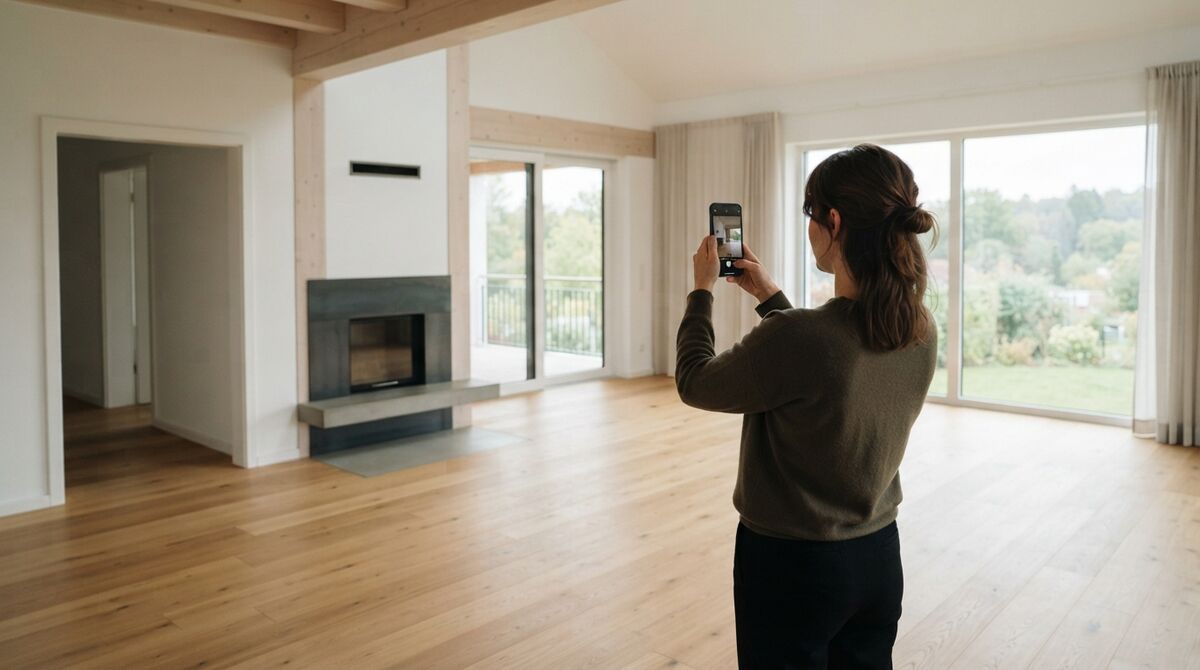
Capture time. A tripod-based scan means setting up, scanning, and moving the camera again for every position. A deputy fire marshal described the difference after his first SkyeBrowse interior: less than 30 minutes of walking with a camera beat moving and scanning hundreds of points with a tripod scanner. With SkyeBrowse, you record one continuous video while you walk the scene, and the cloud builds the 3D model at about one minute of processing per minute of video.
Renewal cost. Agencies tell us their Matterport renewal quotes have climbed sharply, with one state office reporting an increase of more than 40% in a single renewal. When the renewal crosses an agency's purchasing threshold, it also means a new contract process. SkyeBrowse prices per model with no camera to buy, so the budget follows the number of scenes you actually document.
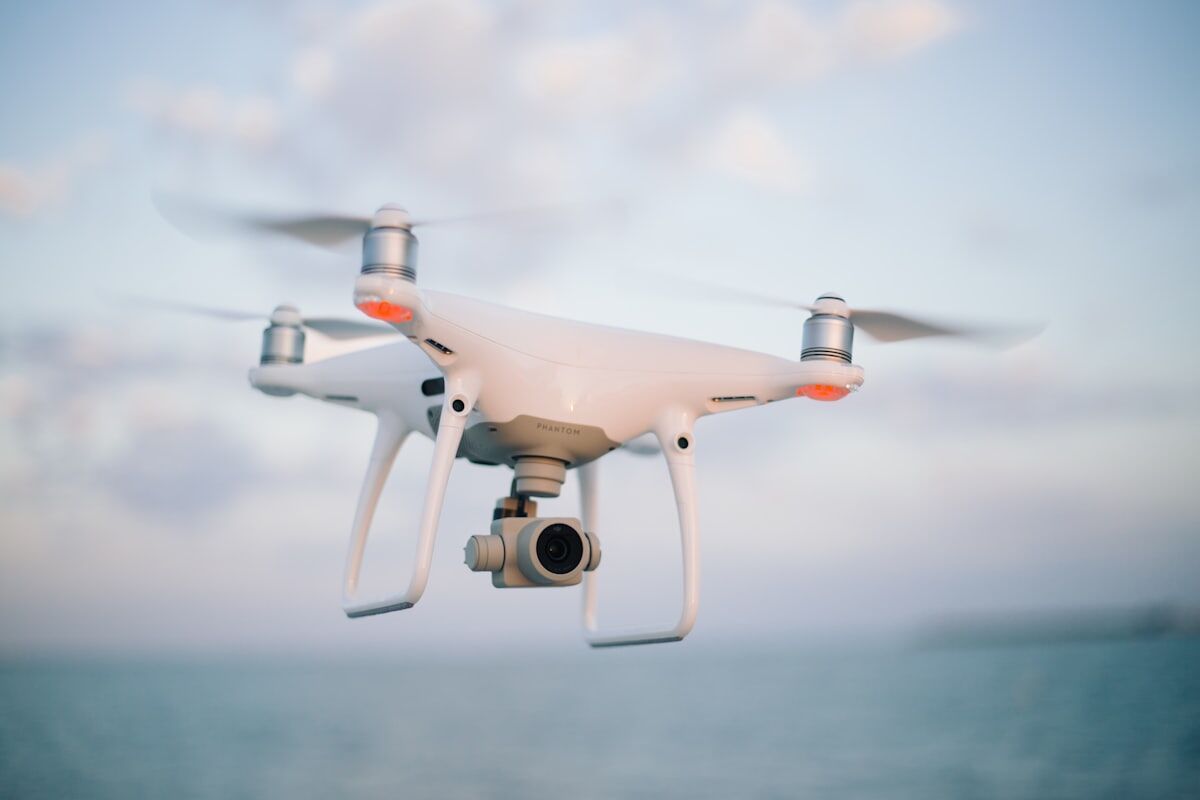
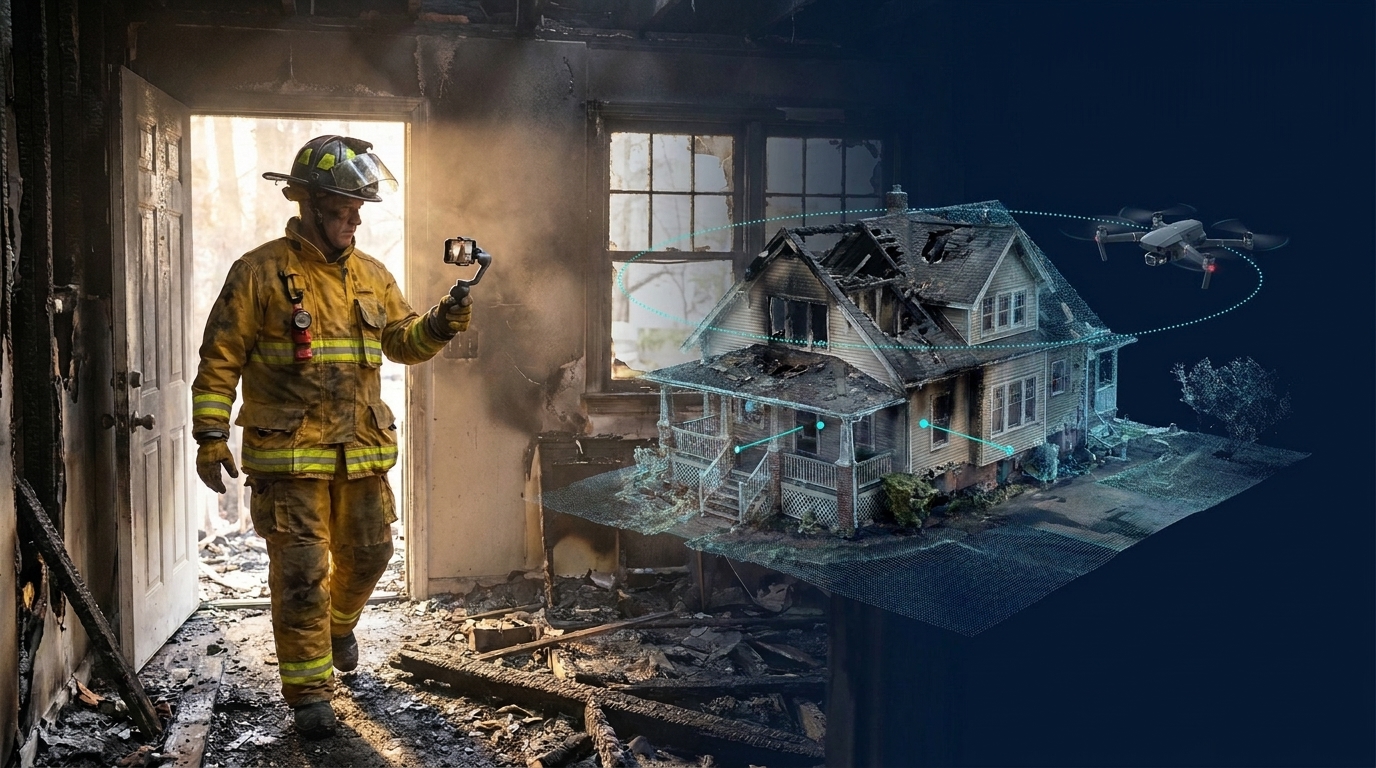
Inside and outside in one case file. Fire scenes and job sites do not stop at the front door. Investigators need the burn patterns inside, the exterior ventilation points, and the surrounding lot. Contractors need the building interior and the site around it. SkyeBrowse maps both: fly a drone around the structure, walk the interior with a phone or 360 camera, and combine the models in one viewer with 3D Overlay.
What Carries Over from Matterport?
The features your team relies on in Matterport have direct equivalents.
| What your team uses | SkyeBrowse equivalent |
|---|---|
| Walkthrough tours with 360 photos | Image Walkthroughs, generated automatically from your video on every plan. With 360 footage, viewers look in every direction. |
| Moving through the space | Walk Mode: first-person navigation at eye level, with adjustable move speed and eye height. |
| Floor plans | AI Floor Plans: a floor plan from an interior model in under 10 seconds (Pro models and Public Safety & Enterprise). |
| Measurements | Distance on every plan; Area, Angle, Volume, and more on paid plans. |
| Sharing with people outside your team | Public links that open in any browser, with walkthrough cameras included. |
| 360 camera capture | Insta360 INSV and OSV files upload directly with no conversion. Rapid Upload handles large 360 interior captures. |
Image Walkthroughs are the feature Matterport users ask about first. Investigators value the embedded 360 photos because they can look around a room exactly as it was found. In SkyeBrowse those images are built from the video you already recorded, so there is no separate photo pass.
What Do You Gain by Switching?
For fire investigators and public safety agencies:
- Full CJIS compliance and chain of custody on Public Safety & Enterprise, hosted on AWS GovCloud (US). Model access, user actions, and sharing are logged.
- Survey-grade, court-admissible accuracy down to 0.1 inch on Public Safety & Enterprise, without ground control points.
- Fire pre-plan and scene symbology. The Icons tool places NAPSG fire, law enforcement, and EMS symbols on the model, plus an NFPA 170-style pre-plan set and an editable NFPA 704 hazard diamond.
- Factual diagrams that turn measurements and annotations into a court-ready PDF.
- Line of Sight for visibility questions at a scene.
- Case Gallery to attach your scene photos as annotations inside the model.
- Unlimited users on Public Safety & Enterprise, so every investigator on the team gets a login.
- Evidence handling with Axon: download the model's assets and upload them to Evidence.com, with chain of custody maintained.
For construction teams:
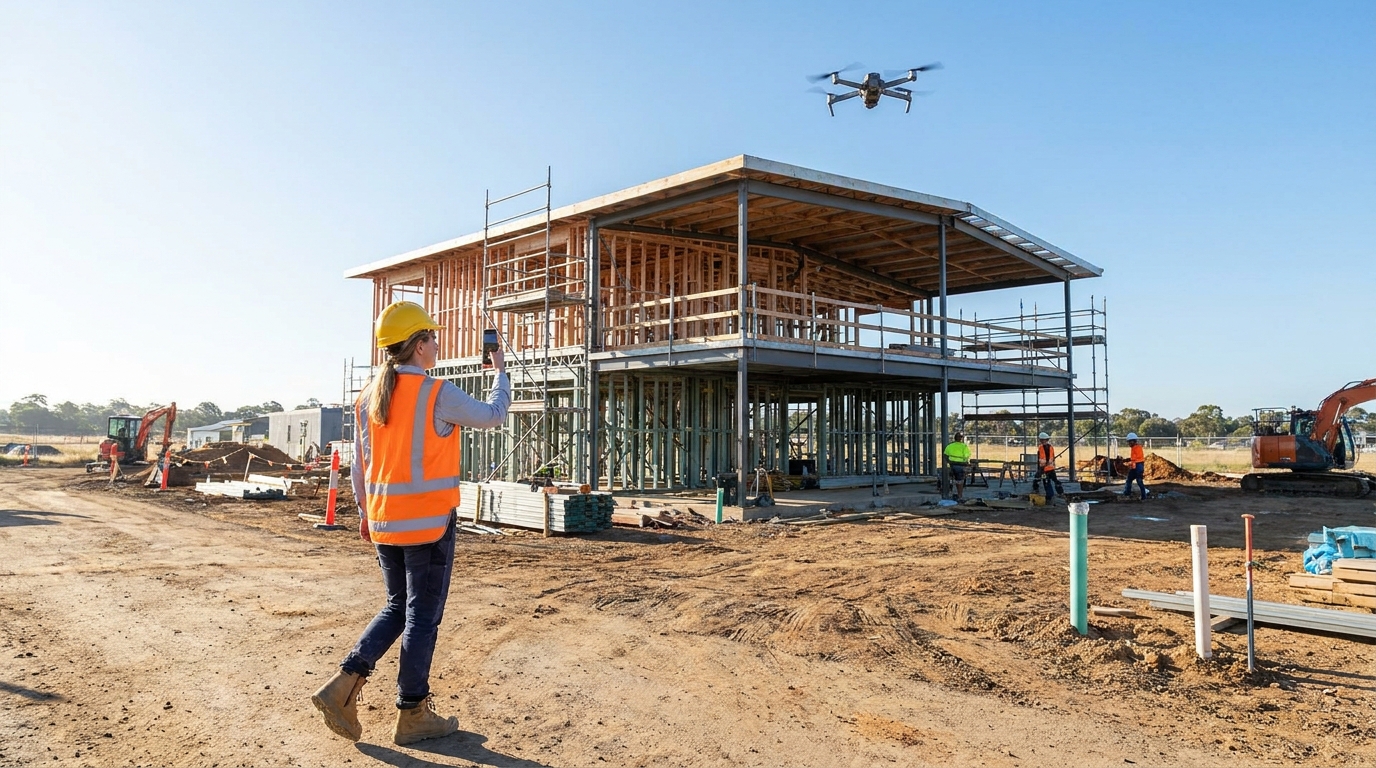
- Exterior and aerial models from any drone, alongside interior walkthroughs.
- Timelines to compare phase captures of the same site over time, with a Changes view that colors what appeared, disappeared, or moved.
- Cut/Fill, Cross-Sections, Stockpile inventory, and GCP accuracy reports for earthwork and site progress (Pro models and Public Safety & Enterprise).
- Exports to your downstream tools: LAZ point clouds, GLB, OBJ, USDZ, GeoTIFF, and CAD as DXF or GeoJSON.
- Co-branded share links: your logo appears next to the SkyeBrowse logo on shared and public model pages on Pro and Public Safety & Enterprise.
How Does Pricing Compare?
SkyeBrowse has no proprietary camera. Use the drone, phone, 360 camera, or body worn camera you already own, and pay per finished model.
| Plan | Price | Best for |
|---|---|---|
| Freemium | Free | Testing capture on your own scenes |
| Commercial model | $24.99 per model, 3 month storage | Short-term project documentation |
| Pro model | $49.99 per model ($39.99 billed annually), 1 year storage, exports and AI tools | Construction and commercial teams |
| Public Safety & Enterprise | $199 per model, billed annually, 5-year guaranteed storage | Agencies that need CJIS, chain of custody, and every tool |
Unused models roll over while your subscription stays active, with no expiration cap. Practice models are unlimited on active Commercial and Public Safety & Enterprise subscriptions and do not count against your balance, so your team can train on real scenes without spending models. Full details are on the pricing page.
How Do You Capture a Scene with SkyeBrowse?
The capture change is the biggest adjustment for Matterport users, and the easiest to learn. Instead of placing a tripod at each position, you walk the space recording continuous video.
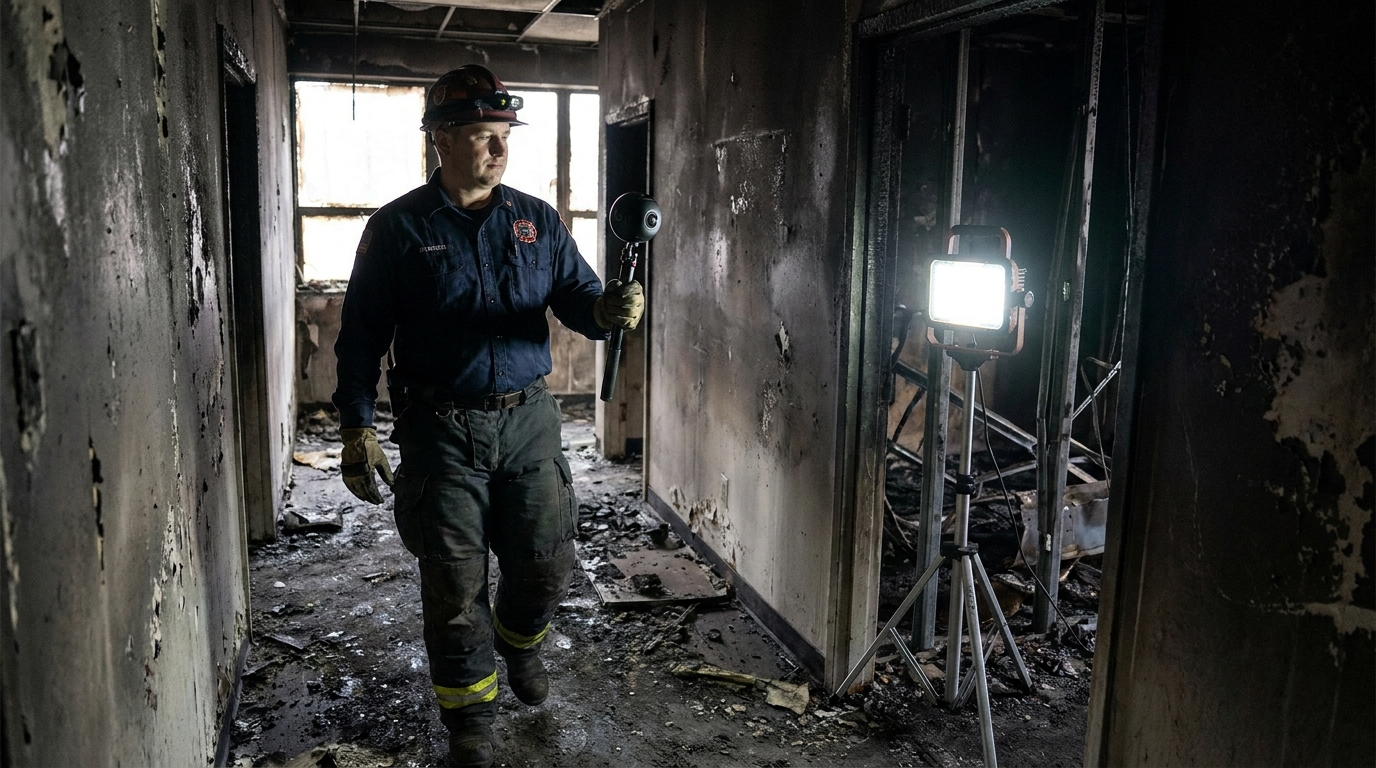
- Turn on Interior Mapping in the upload flow for indoor scenes. Public Safety & Enterprise adds Enhanced Interior Mapping.
- Walk slowly and steadily. Move around the subject rather than panning in place, and keep the camera moving smoothly.
- Watch the lighting. Uneven light is the hardest condition for any optical capture, and fire scenes often go from bright doorways to dark rooms. Bring portable lighting into dark areas so the camera sees consistent detail.
- Avoid glass, mirrors, and blank surfaces where possible, and finish with some overlap back to where you started.
- Fly the exterior with a drone orbit, using the SkyeBrowse Flight App on supported drones or a manual flight uploaded through Universal Upload. Upload the drone's GPS subtitle file (.SRT for DJI, .ASS for Autel) to georeference the model.
- Combine the models with 3D Overlay so the interior and exterior sit in one viewer.
Run your first few scenes as practice models. Keep the ones you need with one click, with no re-upload or reprocessing.
How Do You Switch Without Disrupting Casework?
Most teams run both platforms for a few weeks before they cancel a renewal.
- Apply for the Pilot Program. Public safety agencies get about two weeks of Public Safety & Enterprise access to document real scenes side by side with their current tool. Businesses can create a free account at app.skyebrowse.com, and eligible free accounts can process their first full Commercial model for $5.
- Give every investigator a login. The fastest way to win over a team is to let each person record their own scene. Ease of use is easier to show than to explain.
- Capture the same scene both ways. Compare capture time, measurements, and what your stakeholders can open and use.
- Plan your archive. SkyeBrowse builds models from video, so existing tours stay in the platform that made them. Meshes from past jobs saved as GLB or STL can be imported as layers inside a SkyeBrowse model on Pro (3 layers) and Public Safety & Enterprise (5 layers).
- Move new work over first. Start new scenes in SkyeBrowse and let older tours run out their existing term.
FAQ
Does SkyeBrowse have Matterport-style walkthroughs? Yes. Image Walkthroughs are generated automatically from your video on every plan. Click an image inside the 3D model to zoom, pan, and move to other viewpoints. With 360 video, viewers look in every direction.
Do I need a special camera? No. SkyeBrowse works with MP4, MOV, INSV, and OSV video from drones, smartphones, 360 cameras, action cameras, and body worn cameras.
Can SkyeBrowse map exteriors as well as interiors? Yes. Fly the exterior with a drone, walk the interior with a phone or 360 camera, and combine both in one viewer with 3D Overlay.
Is SkyeBrowse CJIS compliant? Public Safety & Enterprise provides full CJIS compliance and chain of custody on AWS GovCloud (US), FedRAMP Impact Level 2.
How accurate are the models? Public Safety & Enterprise reaches 0.1 inch accuracy and Commercial and Pro reach 0.5 inch, survey-grade and court-admissible without ground control points. In an independent QC study by AirBorne Works, SkyeBrowse video models came closest to Leica BLK360 laser-scan ground truth on 8 of 9 measurements. Read the accuracy study.
How long does processing take? About one minute per minute of video. Most models are ready within 5 to 10 minutes of upload.
Can I keep my old Matterport tours? Existing tours stay in Matterport for as long as your plan keeps them. Meshes saved as GLB or STL can be imported as layers in SkyeBrowse on Pro and Public Safety & Enterprise.
For a feature-by-feature table, see SkyeBrowse vs Matterport. To start a pilot or get a quote for your agency, contact us. Your next scene can be a walk with a camera and a measurable 3D model before you leave the site.