# Tutorial: Avata 360 Mapping

> Avata 360 3D Model Click to load Introduction Mapping with an Avata 360 can be challenging, but with the right techniques and settings, you can create accura...

Source: https://www.skyebrowse.com/news/posts/tutorial-avata-360-mapping
Published: 2026-05-26

## Avata 360 3D Model
<div class="skyebrowse-wrapper" style="position: relative; width: 100%; height: 600px; background-color: #000;">
    <div class="sb-overlay" id="overlay-1" style="position: absolute; top:0; left:0; width:100%; height:100%; background: linear-gradient(rgba(0,0,0,0.4), rgba(0,0,0,0.4)), url('https://skyebrowse-prod-web-assets.s3.us-east-2.amazonaws.com/pi_office_8dcc61f270.jpeg') center/cover no-repeat; display: flex; justify-content: center; align-items: center; cursor: pointer; z-index: 2;" onclick="activateSmartIframe(this)">
        <div style="display: flex; flex-direction: column; align-items: center; background: rgba(255, 255, 255, 0.9); color: #333; padding: 20px 30px; border-radius: 8px; font-family: Arial, sans-serif; font-weight: bold;">
            <div style="width: 0; height: 0; border-top: 15px solid transparent; border-bottom: 15px solid transparent; border-left: 25px solid #333; margin-bottom: 10px; margin-left: 5px;"></div>
            <span>Click to load</span>
        </div>
    </div>
    <iframe class="sb-iframe" id="iframe-1" data-src="https://app.skyebrowse.com/model/public/embedded/6154ca0b-c21e-4542-a30d-3f2747b48bdb" width="100%" height="600" frameborder="0" allowfullscreen style="position: absolute; top: 0; left: 0; width: 100%; height: 100%; border: 0; display: none; z-index: 1;"></iframe>
</div>


## Introduction
Mapping with an Avata 360 can be challenging, but with the right techniques and settings, you can create accurate and detailed models. In this tutorial, we'll set you up for success through the best practices for interior mapping using your Avata 360.

Note: SkyeBrowse works with all 360 cameras, but this tutorial will focus on the Avata 360.

## Before You Start
Use the following settings for your Avata 360 to ensure the best 3D model
- Record 6K at 60fps for indoors and 6K 30fps for outdoors.
- Fly steadily at 1 mph (indoors) and 5-10mph (outdoors)
- **If you are going through doorways or around corners, make sure to slow down.**
- Once you are done flying, insert your SD card into your computer

## The Easy Way: Upload OSV File into SkyeBrowse
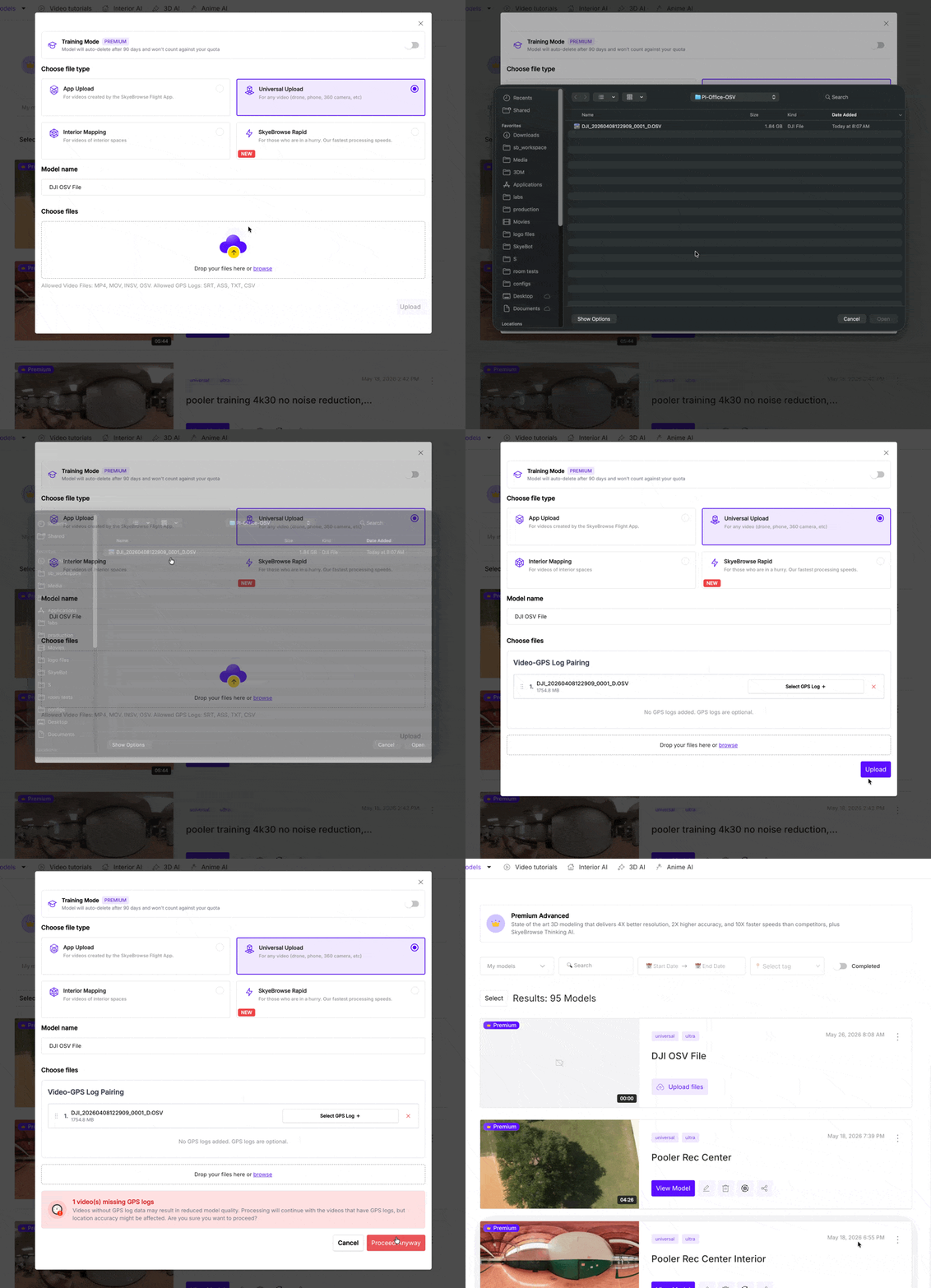
![dji osv upload.gif](https://skyebrowse-prod-web-assets.s3.us-east-2.amazonaws.com/dji_osv_upload_5e493a796e.gif)

Note: this is quicker, but the quality will be slightly lower.

1. **Initiate Upload:** Log in to the [SkyeBrowse web platform](https://app.skyebrowse.com/) and click the 'Upload' button.

2. **Select Upload Type:** Choose 'Universal Upload' from the options.

3. **Uploading Videos:** Select your OSV video file or drag & drop it into the upload box.

## The Advanced Way: Export Avata 360 Video on PC/Mac with DJI Studio
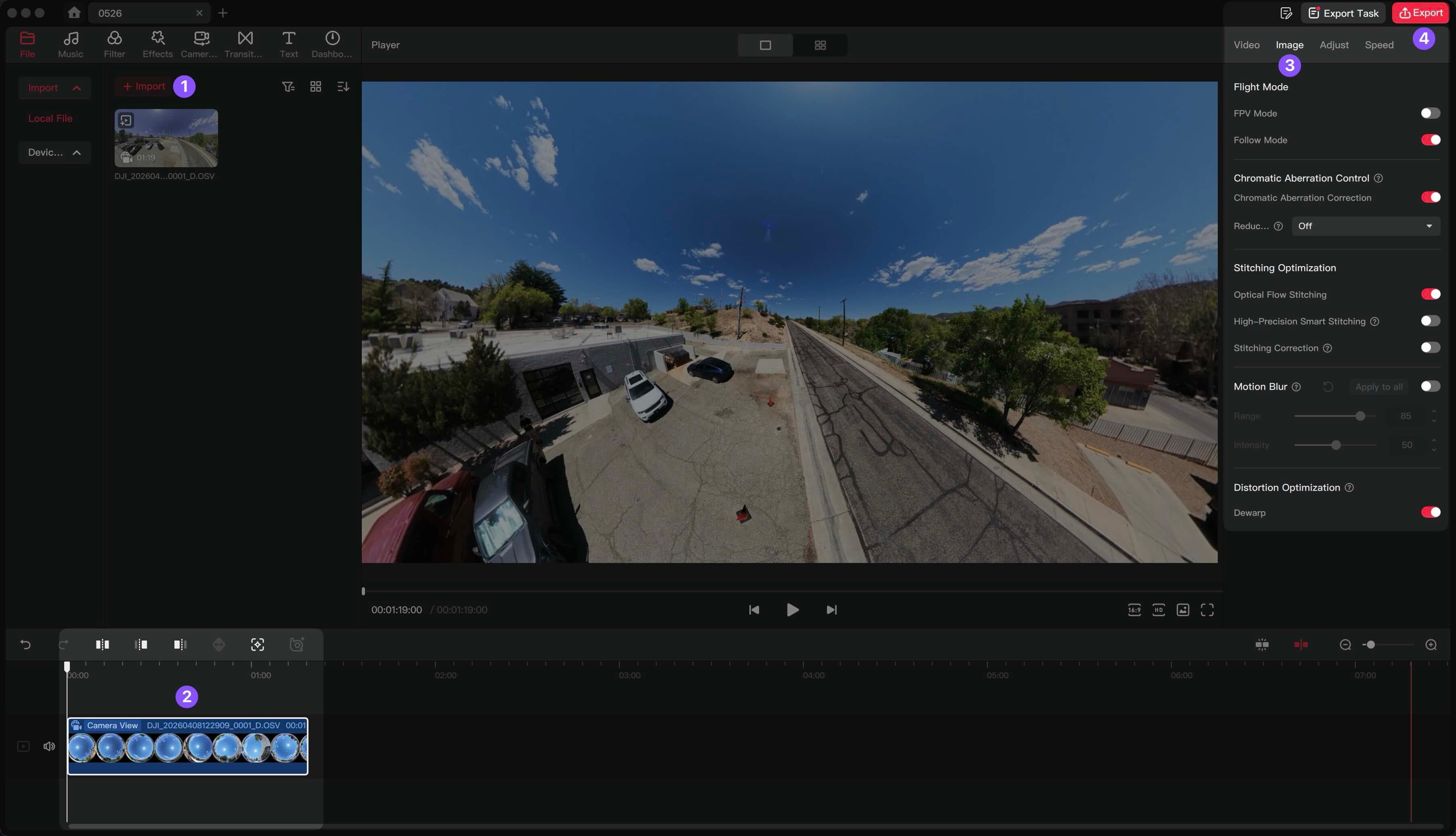
![dji studio tutorial.jpeg](https://skyebrowse-prod-web-assets.s3.us-east-2.amazonaws.com/dji_studio_tutorial_ae7be843e8.jpeg)
Note: this will result in a higher quality 3D model in SkyeBrowse.

1. Open up DJI Studio and import your OSV (DJI Avata 360 video) into DJI Studio
2. Drag your video down to the timeline on the bottom.
3. In the right panel, select image and make sure the settings are correct (default settings are usually accurate).
5. Click Export
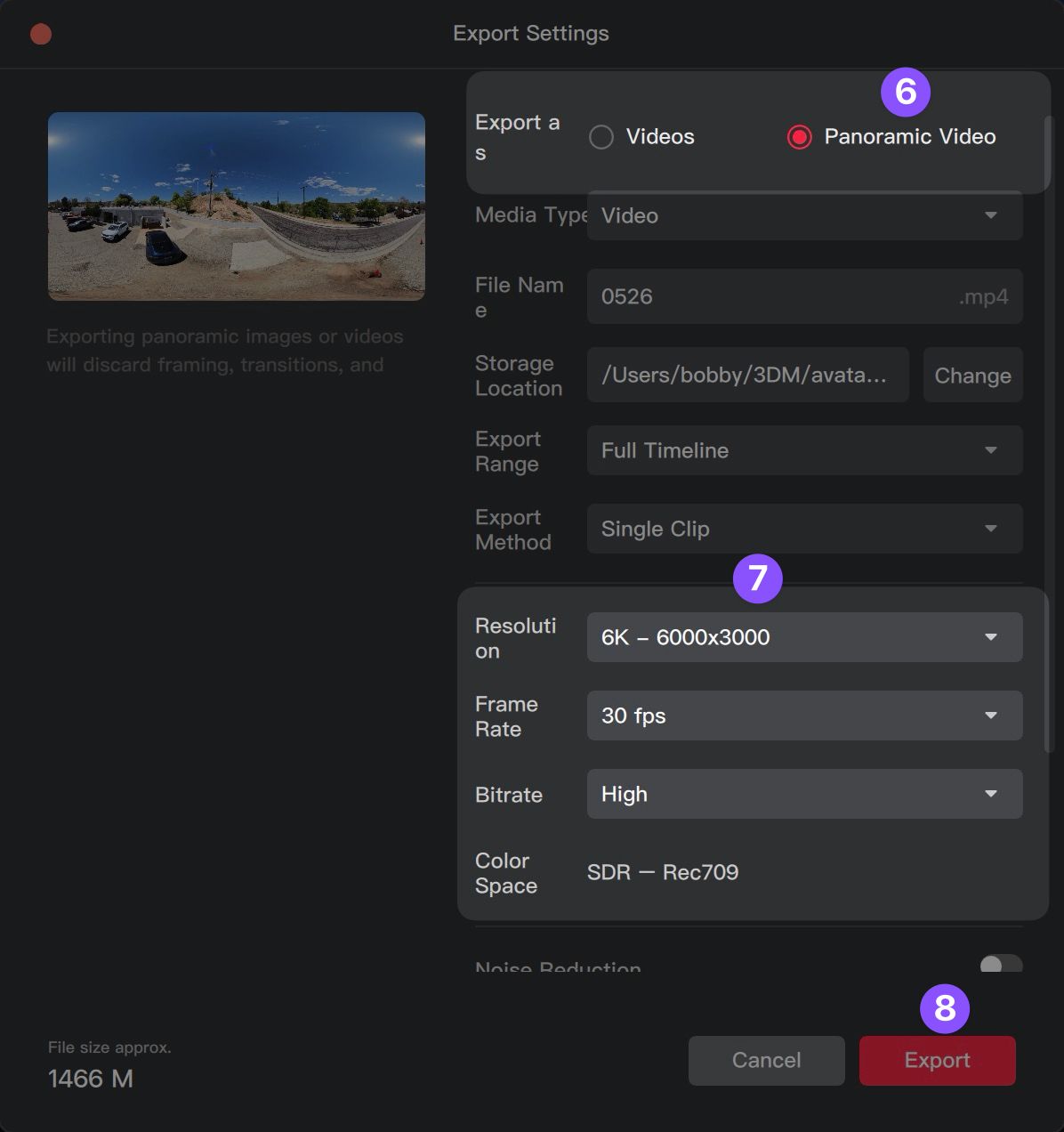
![dji studio export.jpg](https://skyebrowse-prod-web-assets.s3.us-east-2.amazonaws.com/dji_studio_export_8c2c5a0fcb.jpg)

6. Ensure that you are exporting as a panoramic video
7. Select 6K resolution, 30 fps Frame Rate, High Bitrate
8. Click "Export"

## Uploading to SkyeBrowse
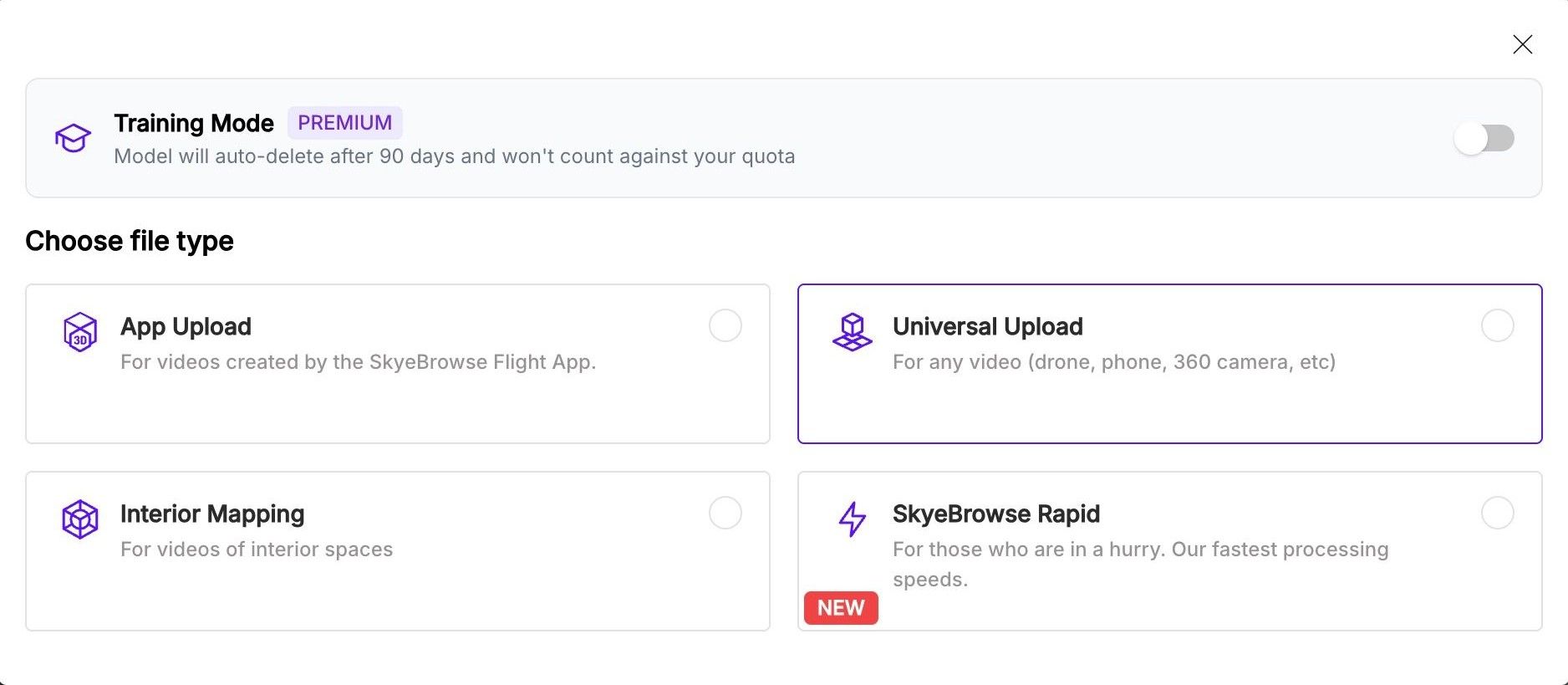
![upload box](https://skyebrowse-prod-web-assets.s3.us-east-2.amazonaws.com/Screenshot_2026_03_12_at_11_49_18_AM_a2a1712d7d.jpg)

1. **Initiate Upload:** Log in to the [SkyeBrowse web platform](https://app.skyebrowse.com/) and click the 'Upload' button.

2. **Select Upload Type:** Choose 'Universal Upload' from the options.

3. **Uploading Videos:** Select your exported video or drag & drop it into the upload box.

4. **Get Avata 360 3D Model:** You will receive an email in minutes with the link to your Avata 360 3D model.

By following these steps, you can effectively utilize your Avata 360 for high quality SkyeBrowse 3D modeling. The resulting 3D models can be used for various applications such as real estate showcases, construction planning, tactical applications, and more. Happy mapping!

<div class="skyebrowse-wrapper" style="position: relative; width: 100%; height: 600px; background-color: #000;">
    <div class="sb-overlay" id="overlay-2" style="position: absolute; top:0; left:0; width:100%; height:100%; background: linear-gradient(rgba(0,0,0,0.4), rgba(0,0,0,0.4)), url('https://skyebrowse-prod-web-assets.s3.us-east-2.amazonaws.com/pi_office_8dcc61f270.jpeg') center/cover no-repeat; display: flex; justify-content: center; align-items: center; cursor: pointer; z-index: 2;" onclick="activateSmartIframe(this)">
        <div style="display: flex; flex-direction: column; align-items: center; background: rgba(255, 255, 255, 0.9); color: #333; padding: 20px 30px; border-radius: 8px; font-family: Arial, sans-serif; font-weight: bold;">
            <div style="width: 0; height: 0; border-top: 15px solid transparent; border-bottom: 15px solid transparent; border-left: 25px solid #333; margin-bottom: 10px; margin-left: 5px;"></div>
            <span>Click to load</span>
        </div>
    </div>
    <iframe class="sb-iframe" id="iframe-2" data-src="https://app.skyebrowse.com/model/public/embedded/9693ea25-464f-4588-9204-964817b99bff" width="100%" height="600" frameborder="0" allowfullscreen style="position: absolute; top: 0; left: 0; width: 100%; height: 100%; border: 0; display: none; z-index: 1;"></iframe>
</div>

Big thanks to Pilot Institute for helping us with testing. <a href="https://pilotinstitute.com/course/skyebrowse-deep-dive/" target="_blank"> Check out their free SkyeBrowse course here.

<div class="content flex items-center flex-row">
  <div class="label">
    <a href="https://app.skyebrowse.com/register" class="inline-flex cursor-pointer justify-center items-center px-4 text-sm font-normal px-8 font-medium buttons_lg__TAutX buttons_primary__HEUuf w-fit" target="_blank">Sign Up</a>
  </div>
</div>
